Natural-Light Portrait
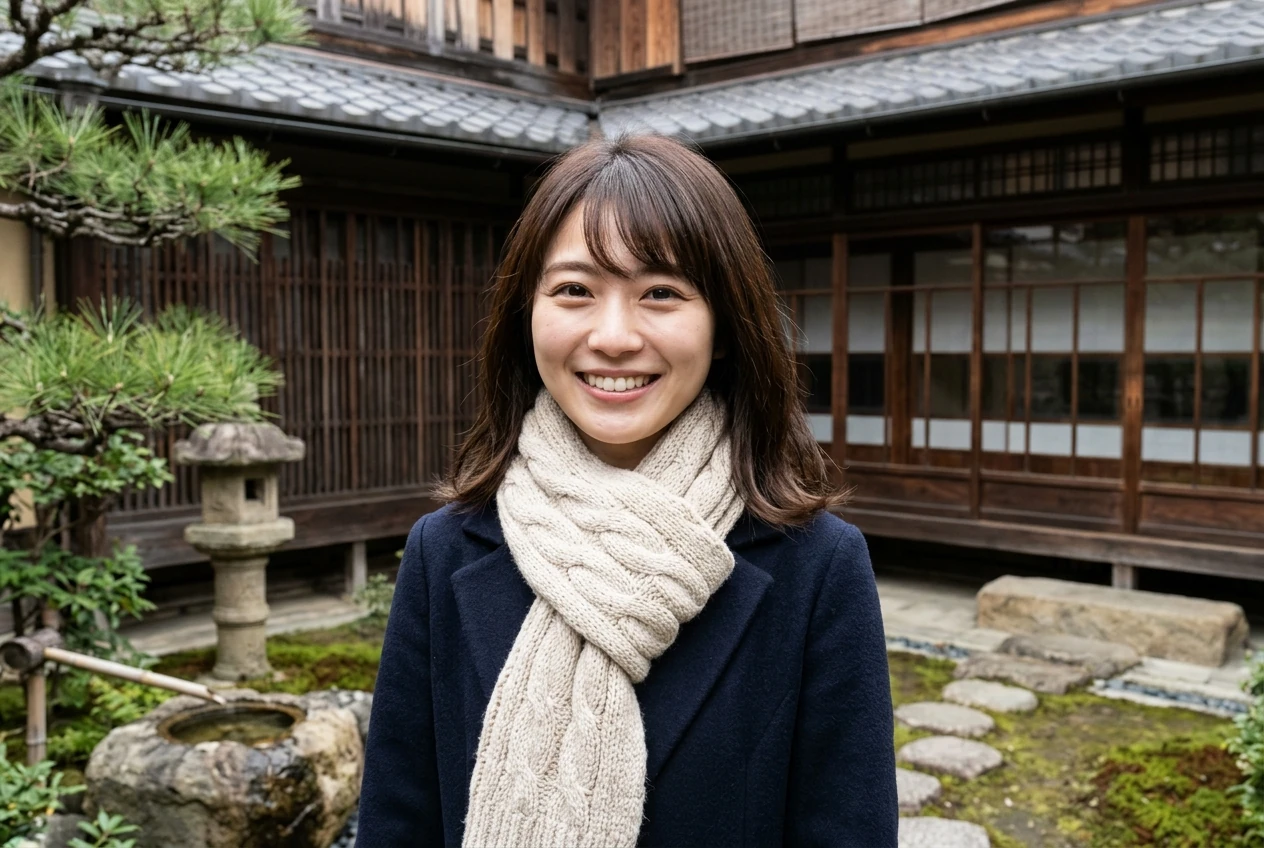
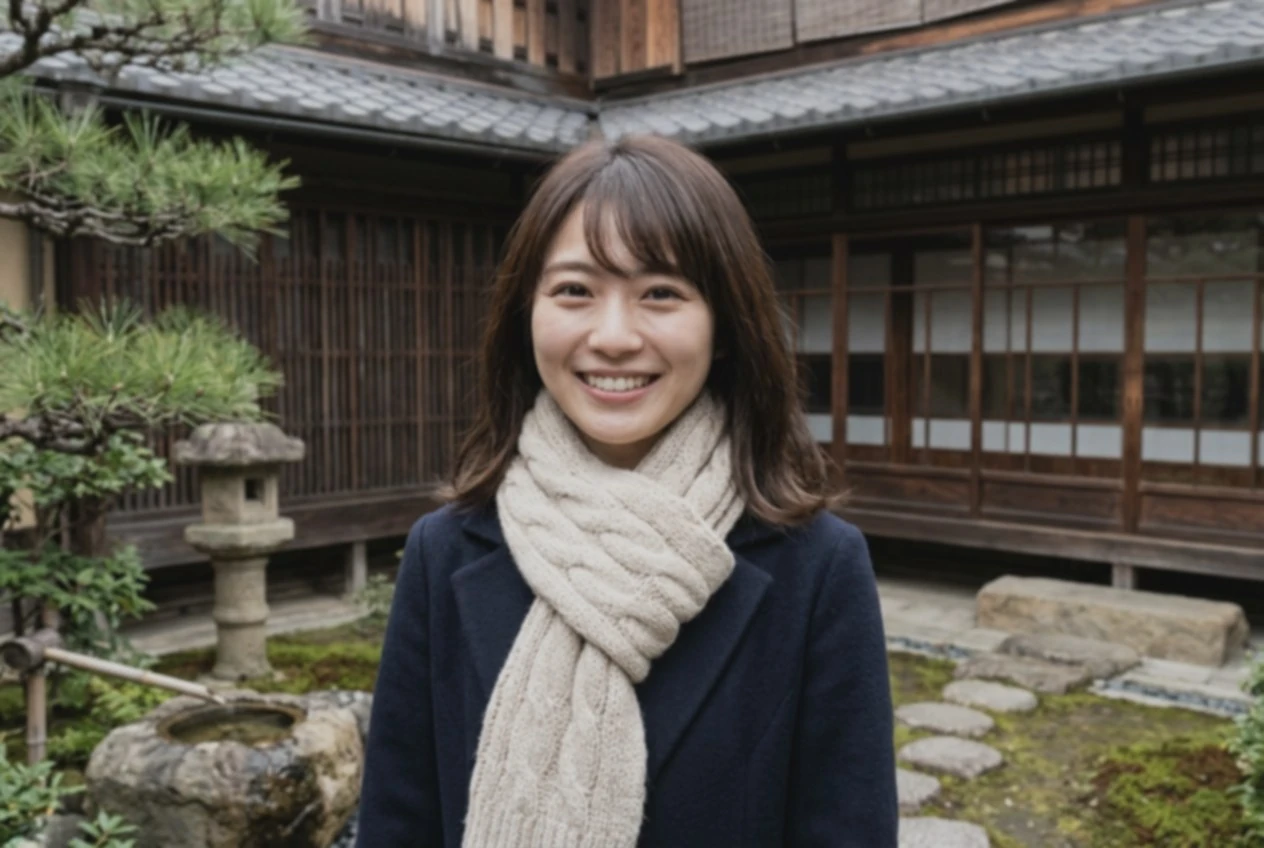
A garden portrait with fine hair, skin and knitted scarf details.
Reduce dust and scratches without automatically adding color or rebuilding faces. Keep black-and-white and sepia photographs in their original palette.
Reduce dust and scratches without automatically adding color or rebuilding faces. Keep black-and-white and sepia photographs in their original palette.
Seedream 5.0 Flash · 10 credits
This model is not available yet.
Checking availability…
Only use photographs you have permission to process. File privacy & retention
Dedicated face reconstruction is off by default. Details may still change.
Use a private browser session. Recover purchased credits through your payment email.
See the file deadline on every result. Read the retention policy.
Drag the divider to compare before and after.
A garden portrait with fine hair, skin and knitted scarf details.
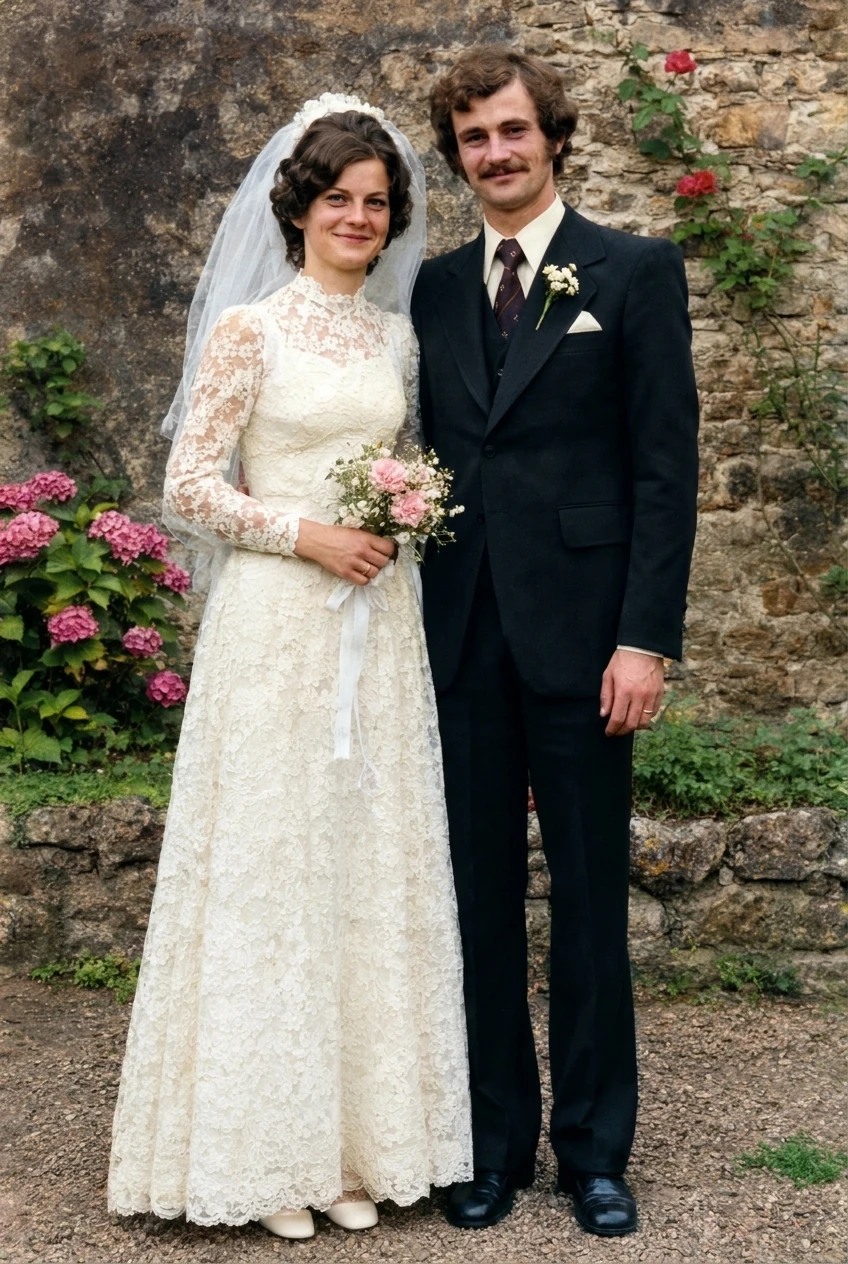
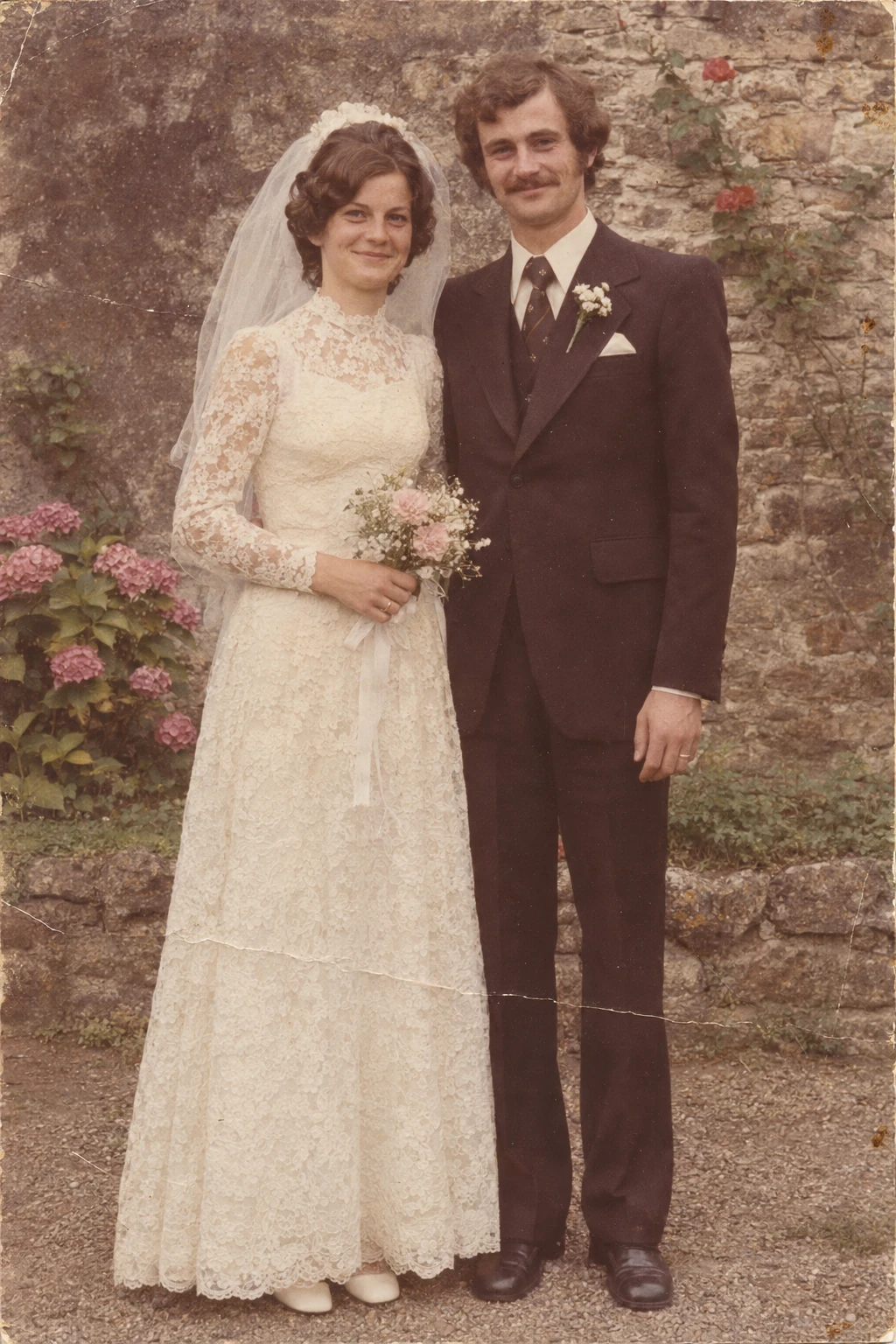
A faded wedding print with scratches and a visible paper crease.
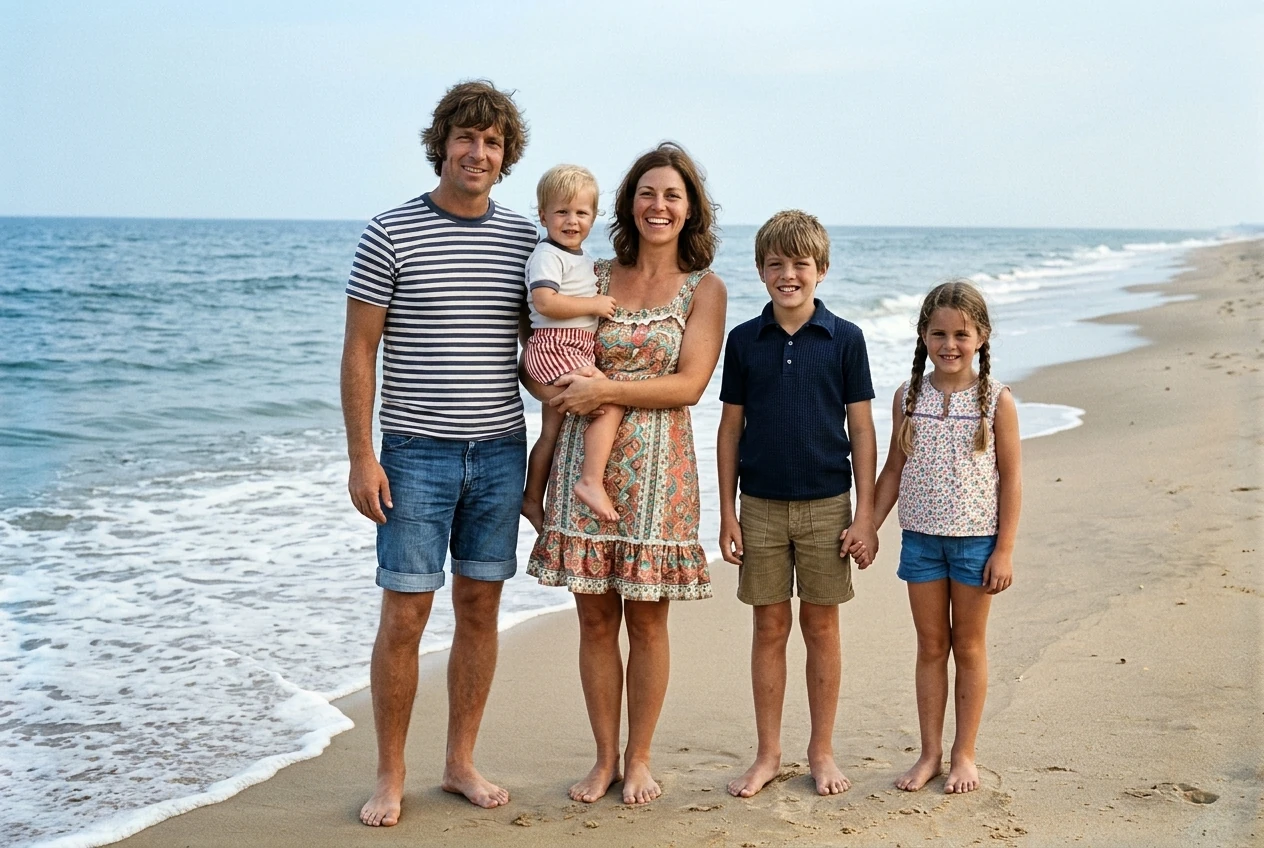
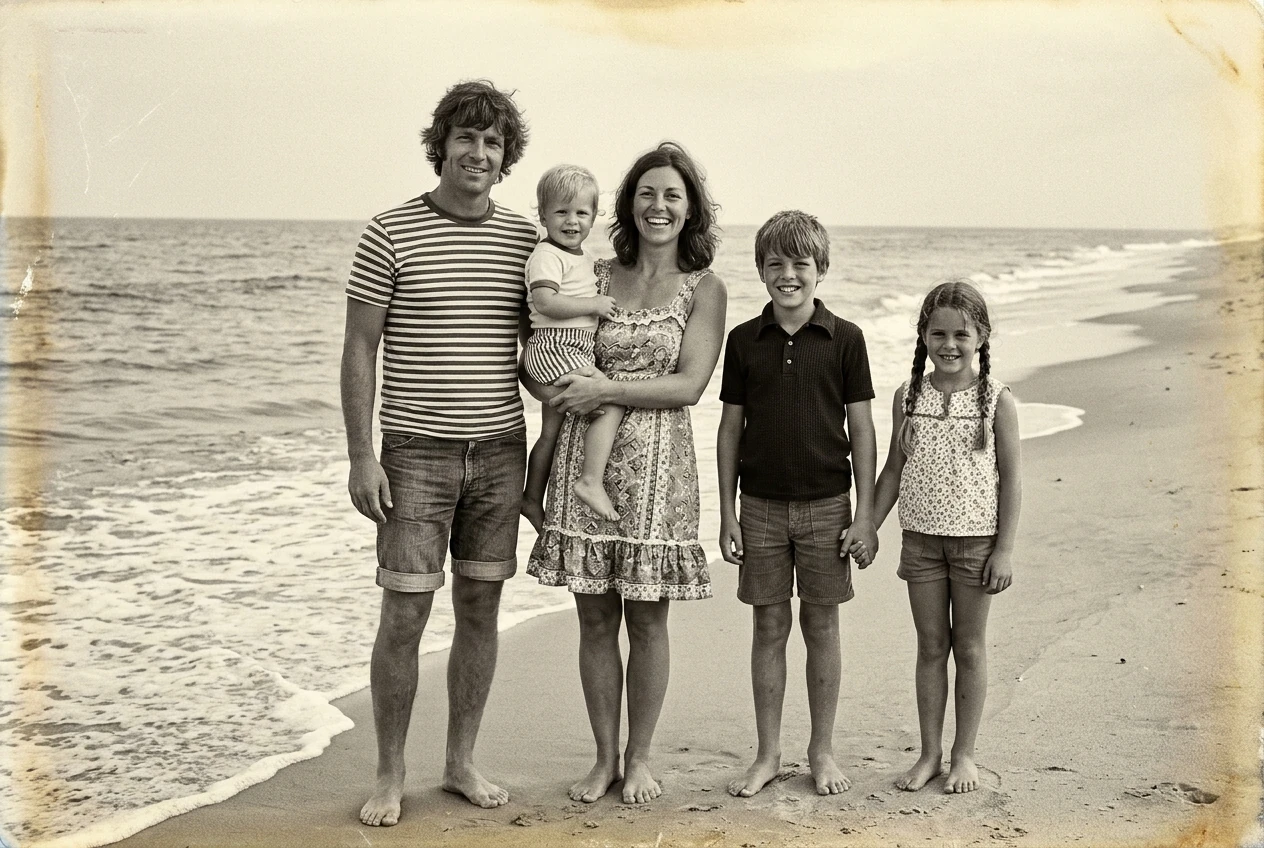
A warm-toned monochrome family photograph from a beach holiday.
Scan the photo evenly and keep an untouched copy.
Restore damage without automatic coloring.
Inspect repaired areas; colorize separately only if you want to.
• Use a dedicated dust-and-scratch workflow.
• Preserve the original black-and-white or sepia palette by default.
• Promise to reconstruct missing faces accurately.
• Automatically combine restoration, face rebuilding and coloring.
One-time credit packs. Review the exact task cost before you start.
No. Colorization is a separate tool and a deliberate choice.
Damaged regions may need reconstruction. Treat new detail as an interpretation.
A technical failure restores the task credits. Credit restoration is different from a refund to your payment method.
The planned file window is at most 24 hours from upload, shared by all results. Processing stays disabled until storage cleanup and provider retention are verified. Read the current policy.
Upload your original on the next tool to keep each operation deliberate. Content updated November 4, 2026. Real model examples are pending.